Productivity & workflow
How to organise and document your workflow as a lawyer
Two Kanban task systems I built in Microsoft Planner: one for day-to-day work and a record of your achievements, one for tracking big multi-party matters.
The short version
Run your workload as a Kanban board in Teams/Planner (or Notion, Trello): a General board with To Do, Doing, Under Review/Waiting and Done columns for day-to-day work, plus 'Key Matters' columns that double as a record of achievements for performance reviews — and a separate Matter-specific board for tracking tasks and review stages on larger matters.
Lawyers know the value of a good to-do list. Every meeting, email, conversation or stray thought can be a task for a different client with a different due date, so you need a system to record and work through them all rather than holding everything in your head. For years I just dot-pointed everything into a notebook and carried tasks over each day. Over time I wanted a system that visually manages my workflow, is digital and flexible, and — most importantly — doubles as a record of my responsibilities and achievements for performance and promotion conversations.
Overview of the two systems
Two systems, built in Microsoft Teams / Planner (Notion, Trello, Monday etc. work too):
General — for tracking day-to-day work and keeping a record of your achievements, in a form that's easy to translate into performance reviews and promotion applications.
Matter-specific — for tracking tasks, timeframes and review / approval processes on larger or longer-term matters.
1. General task manager
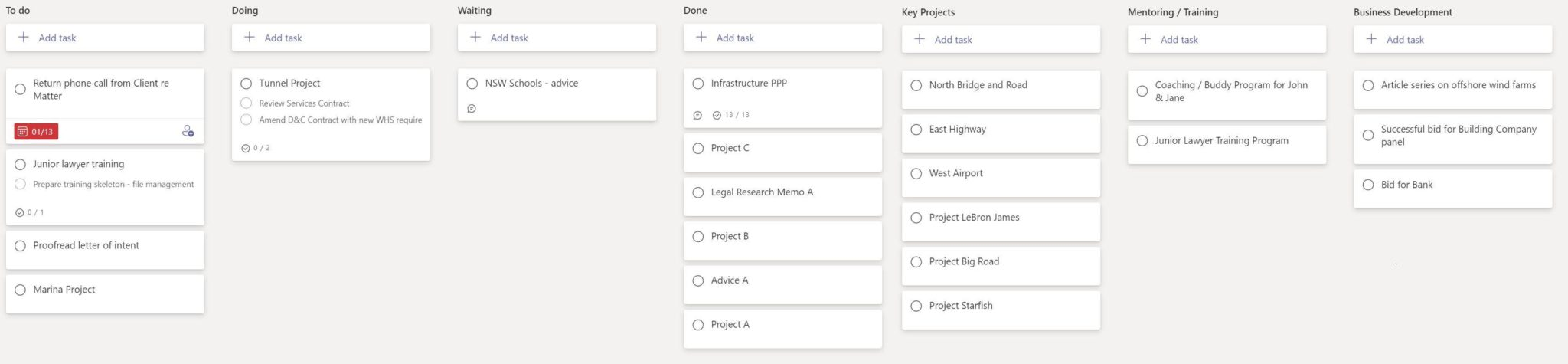
The first four columns ('buckets') are for day-to-day work, Kanban style:
To Do — tasks not yet started. I try to keep this to ~10 cards; more than that, and it's worth asking whether you can really take on new work.
Doing — tasks you've started that you can complete without outside help. Try to keep fewer than 3 at any time.
Under Review / Waiting — tasks that have gone as far as you can take them (e.g. a draft awaiting your manager's review). This keeps your blockers and follow-ups visible.
Done — completed tasks. They can move back if new comments or instructions come in.
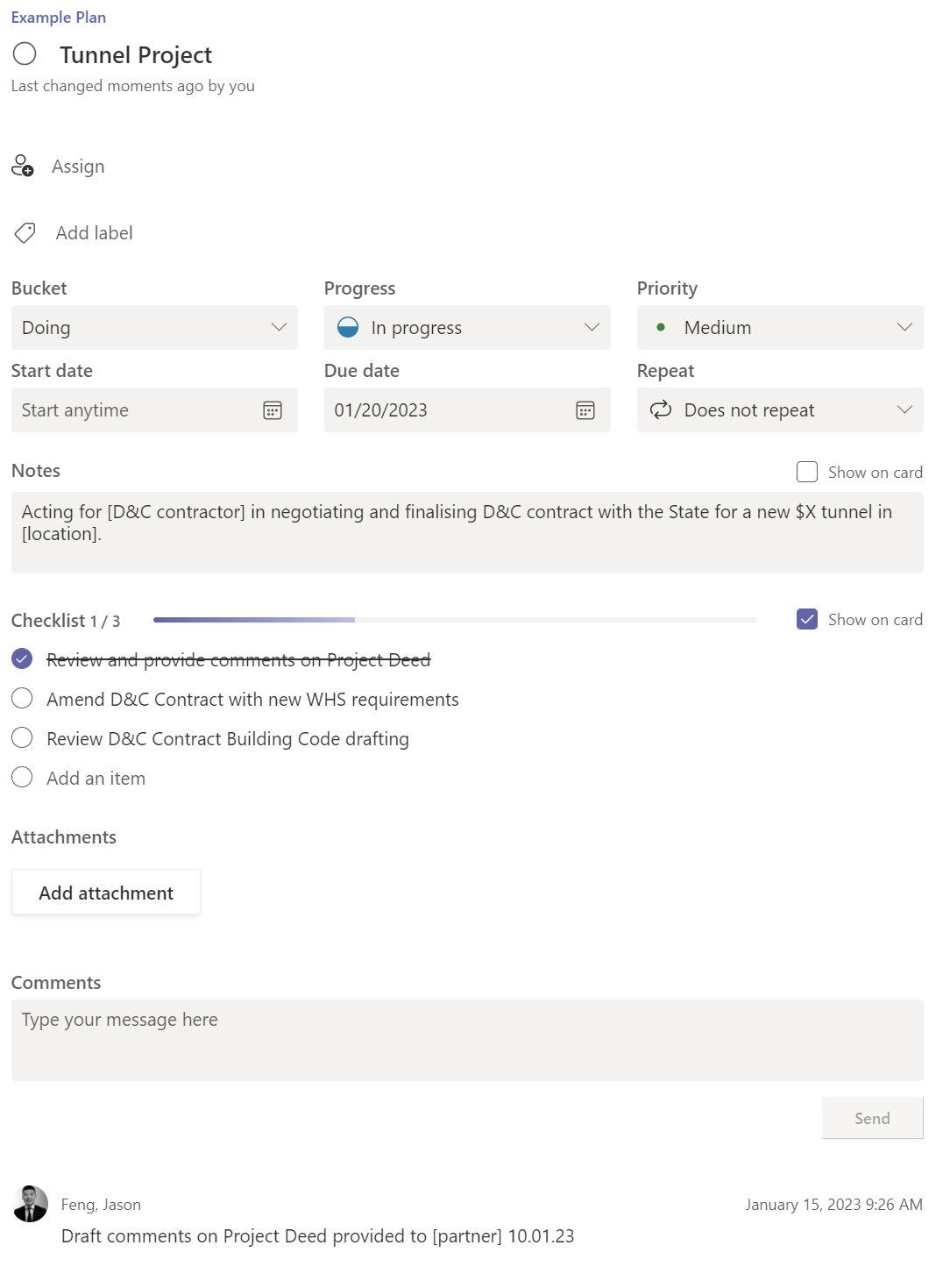
How I use the cards:
New cards — a card per one-off task, or a card per matter with a checklist inside for its various tasks.
- Moving cards — click and drag to the appropriate column.
Populating cards — a description with background, a completion date, and comments that track progress (e.g. "Draft v3 doc no. 123456 issued to [partner] at [time]").
To expand this into a record of achievements and responsibilities:
- Identify a few areas you'll focus on at your next review (from a policy, or agreed with your manager).
- Add columns on the right for those areas — a "Key Matters" column is handy.
- Drag cards across, or create new cards summarising each achievement as you finish relevant tasks.
- Click the Teams tab on the left ribbon.
- Create a channel, or select an existing one.
- In the channel, select the "+" in the top ribbon.
- Select "Planner".
- Create a new plan and select "Save".
- Create the To Do, Doing, Under Review / Waiting and Done columns, plus "Key Matters" and any review columns.
- Create cards for tasks as you need them.
It's worth spending some time filling the Done and Key Matters columns with work you've already completed, so you don't forget about it.
2. Project-specific task manager
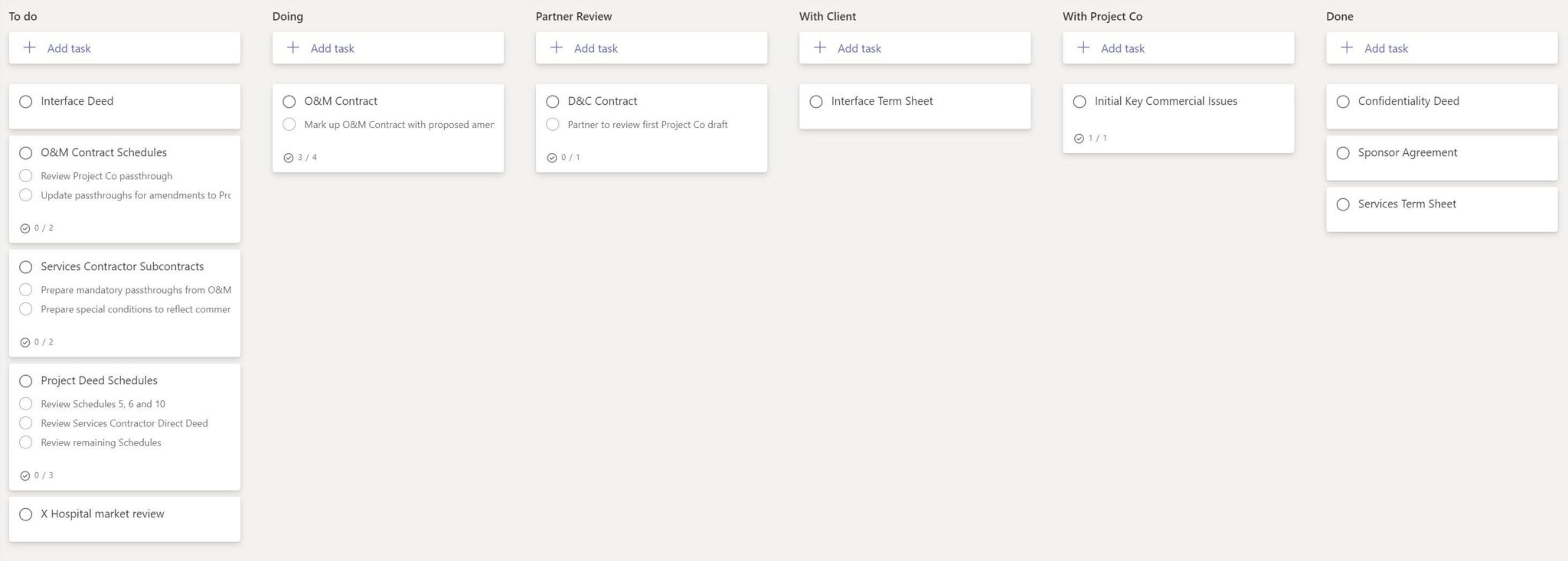
This example is for a PPP-project workflow, where many contracts move back and forth between parties as drafting and negotiations progress — but you can build a version for large-scale litigation, regulatory processes or in-house projects. As with the general manager, deliverables and tasks live in cards that move through review stages and document what's happening:
Services Contract — Meeting with [party] on [date]. Amendments to reflect negotiated outcomes per meeting, as set out in [negotiation table].
Setup is the same as the general manager. If you're running both, create a new channel for the specific matter rather than another tab in the same channel.
Working with others
Depending on how familiar your team is with Kanban systems, you might start just for your own use — then introduce it. You can send weekly progress updates:
Hi team — please see below a summary of the tasks and deliverables for [project]. I've set out the progress and status of each based on our meetings; let me know of any updates or additional tasks and I'll update the tracker. [insert screenshot of tracker]
You can also assign team members to tasks and run progress meetings off the board (what's to be done, the blockers, and what help is needed), show juniors how their work fits the bigger picture, and use it to explain timeframes or billing to clients.
Final thoughts
This is a system I've tweaked for my own work as a transactional lawyer. Your workflows will differ, but hopefully it's a solid skeleton to build from. I've kept it deliberately simple — Teams, Planner and other platforms offer plenty more features to build on.
Frequently asked questions
How should a junior lawyer manage their workload?
Use a visible Kanban board rather than holding tasks in your head: To Do (aim for ~10 cards max), Doing (fewer than 3 at once), Under Review/Waiting (so blockers stay visible), and Done. Each card holds the background, a due date, and progress comments.
How can a task board help at performance-review time?
Add 'Key Matters' and review-focus columns on the right and drag completed work across as you go. It becomes a running record of your achievements and responsibilities that's easy to translate into review and promotion conversations.
Which tools can you use to build a legal task board?
Microsoft Teams with Planner is one option (create a channel, add a Planner tab, and set up the columns), but Notion, Trello and Monday work the same way. Use a separate channel for each major matter.
Part of the Field Guide
This is 1 of 110+ guides
The full library adds templates and learning tracks — one payment, lifetime access.
Get the next guide in your inbox
One short, practical email most weeks. No spam — unsubscribe any time.