Productivity & workflow
File management for junior lawyers: a step-by-step guide
A five-step system for managing a matter file: getting involved early, folder structure, naming conventions, version control, and saving as you go.
The short version
Manage a matter file in five steps: ask to be the person responsible (and to be copied on correspondence), set up a logical folder structure (using an example file from your team), use a consistent naming convention (date – type – parties – description) so files sort chronologically, keep strict version control, and save everything as it comes in — including attachments separately.
When I started working as a lawyer for the first time, I quickly learned that file management was one of the most valuable skills we could use. If you've ever been on the receiving end of a badly managed file — you know how much of a headache (and timewaster) it is to try to make sense of it.
But I also realised that file management didn't just mean being organised. There was a technique to doing this in modern legal teams that we didn't really focus on learning in law school.
Here are the steps to make sure your files are managed properly (so you can dodge the stress of urgently searching for a misplaced document):
Ask to be involved
Ask your colleagues if they'd like you to be the primary person responsible for managing the file and making sure all documents are saved. If so, give them a reminder to keep you copied in on emails and any other correspondence for the matter.
It's also a good time to ask if they have any particular preferences in how the file is managed, documents are saved, and whether there's an example file that they're happy with.
This is also handy to get an understanding of what type of documents you can expect to come across for your particular practice group. For example, with transactional work — you might be dealing mostly with emails and multiple versions of contracts. Whereas for litigation — you might need to save more formal letters and court documents instead.
Folder structure
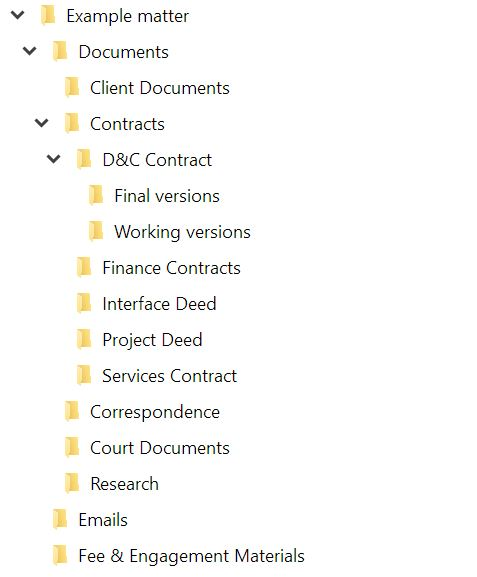
This can differ between practice groups (which is why an example file is so handy) — but some general rules I follow are:
- separate folders for emails, meeting notes / letters, contracts, court documents, fee materials and other documents received from the client;
- sub-folders for different agreements / types of court documents;
- further sub-folders for final versions vs drafts.
Here's what a file would look like using these general rules for a construction matter (with Microsoft OneDrive):
Naming convention
Again, subject to your team's preferences but at a basic level — I like to identify the date, type of document, sender/recipient, brief description of content, and whether there are edits. As examples:
For letter: "2021-10-10 - Letter - ABC to XYZ - Initial Notice of Claim for Contamination [Law Firm draft comments 2021.10.14]"
For contract: "2021-10-10 - Project Deed - Received from Other Law Firm [Law Firm mark up 2021.10.14]"
I name documents this way because if I sort the documents by name, then they appear in chronological order (which is handy for the construction matters that I deal with).
Version control
If we're making changes to a particular document a number of times before it gets sent out to a client / other party (e.g. a contract) — it's better to save those changes to a new version of the same document, rather than as a new document itself. For example, "2021-10-10 - Project Deed [version 1 - Law Firm mark up]".
This is pretty important to get right — otherwise you / your team might be looking at versions of the document with different changes. I've made version control mistakes before and believe me, it's super stressful.
Here are some general rules I've learned so you don't have to make the same mistakes:
- Ask if your changes are to continue existing mark up, or if you should accept existing changes and show only your amendments.
- Use new versions if the same document is still being internally revised. Save as a new document for anything being sent out / received.
- When sending documents, attach both the live link as well as a read-only copy (this can also help you to generate compares to see how your colleagues have amended your work afterwards).
- Depending on the document management software you're using, there may be an option to include a comment when you're saving a new version. This can also be handy to track the history of your amendments (e.g. "Amendments to contract based on client instructions from meeting on 21 October 2021").
Save all documents
I'm not going to sugarcoat it — this is a sucky admin task. But it's better than spending 2 hours trying to find an important email when everything's urgent.
So save yourself some hurt and save things as they come in. Or at least allocate a time at the end of each week to do it.
Oh, and when you're saving emails — remember to save the attachments separately :)
Frequently asked questions
How should you name legal documents?
Lead with the date in YYYY-MM-DD form, then the document type, the sender/recipient, a brief description, and any edit note — e.g. '2021-10-10 - Project Deed - Received from Other Law Firm [Law Firm mark up 2021.10.14]'. Dating them this way makes files sort chronologically.
What's the right way to handle contract version control?
Save changes as new versions of the same document while it's being revised internally, and only create a new document when it's sent out or received. When sending, attach both the live link and a read-only copy so you keep a record of the exact version.
How do I set up a folder structure for a matter?
Ask a colleague for an example file first, since it varies by practice group. As a general rule: separate folders for emails, letters/notes, contracts, court documents and fee materials, with sub-folders by agreement or document type, and further sub-folders splitting drafts from final versions.
Part of the Field Guide
This is 1 of 110+ guides
The full library adds templates and learning tracks — one payment, lifetime access.
Get the next guide in your inbox
One short, practical email most weeks. No spam — unsubscribe any time.