Productivity & workflow
Inbox zero for lawyers
A simple inbox-zero system for lawyers: triage email quickly, act or file, and stop living in your inbox.
The short version
A simple inbox-zero system for lawyers: four folders — Archive, Action, Waiting for input, Read later — and a triage process. Stop monitoring your inbox constantly; check it at a set interval, and for each email take one of five actions: archive, delegate, do now (if under 2 minutes), do later (add it to your task manager), or read later. Speed it up with Outlook Quick Steps and keyboard shortcuts.
I'm always looking for ways to spend less time in my inbox. This is the simplest "inbox zero" process I could put together from Outlook productivity guides — built for a lazy lawyer like me. The goal: reduce the mental energy inboxes eat up, free time for deep work, and cut clutter without building a folder maze. There are two parts — four folders, and a triage process.
The four folders
The biggest problem with most "inbox zero" guides is a maze of folders that creates more work. Four is enough:
1. Archive
The home for every email that needs no action or has already been actioned — separate from your main inbox, so you can still search for it but it's out of the way. Outlook has an Archive folder you can send emails to with Backspace (Delete removes them). On new Outlook or the web the archive key is "E".
2. Action
Where emails you need for a current task sit (e.g. instructions to amend a contract), so you don't sift your whole history for them. Most move straight from the inbox; sometimes you pull an archived email back in. Once the task is done, archive them — you can always pull them back if it goes live again.
3. Waiting for input
Emails you need to action but are waiting on someone else for (e.g. a colleague needs to amend a different part of a contract first). It keeps your follow-ups visible without cluttering the inbox; when the input arrives, it moves to Action or Archive.
4. Read later
Things you want to read (industry reports and the like) but don't have time for when they land. Once read, it moves to Archive.
The triage process
First, stop actively monitoring your inbox — check it at a set interval (start with 30 minutes). When you do, file each new email to your document management system, then take one of five actions:
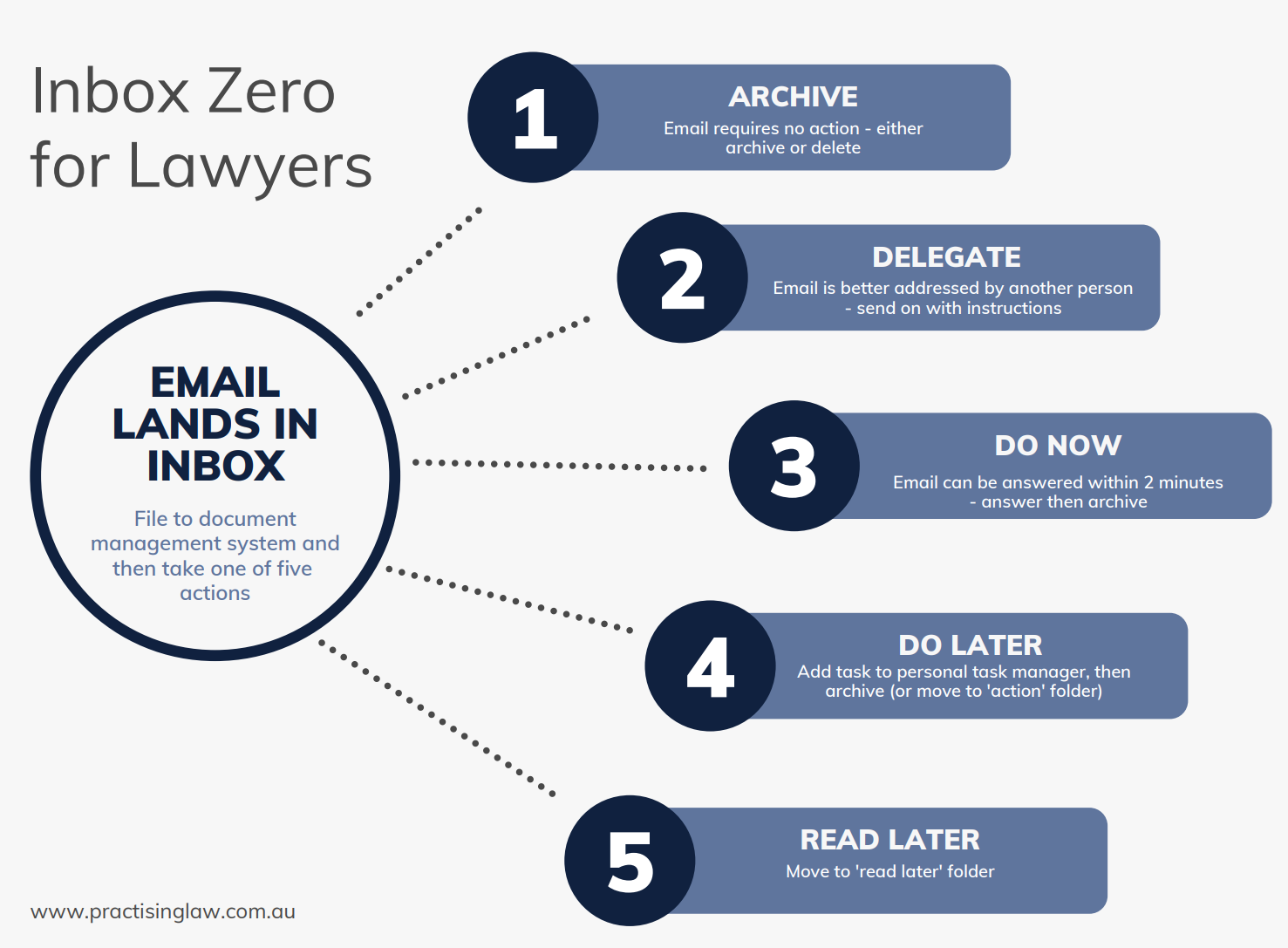
- Archive — no action needed (e.g. an FYI cc). Delete only if you're 100% sure you'll never need it (a one-off IT alert).
- Delegate — refer it to the right person, then archive it or move it to "Waiting for input".
- Do now — if you can answer within 2 minutes, respond immediately and archive.
- Do later — if it'll take more than 2 minutes, add it to your task manager.
- Read later — move it to the Read later folder.
Making triage faster with shortcuts
Two things speed it up: Quick Steps (your own one-click actions) and the built-in keys.
Quick Steps — classic Outlook (desktop):
- On the Home tab, find the Quick Steps gallery in the middle of the ribbon.
- Click the small arrow at the bottom-right, then New Quick Step → Custom.
- Name it after the folder it feeds — e.g. "To Action".
- Under "Choose an Action", pick "Move to folder", then select the destination.
- Click "Add Action" for anything extra (e.g. Move to folder + Mark as read).
- Open the "Shortcut key" dropdown and assign one — Ctrl+Shift+1 through Ctrl+Shift+9.
- Click Finish.
Set one up for each of the four folders. Mine are Ctrl+Shift+1 for Action, Ctrl+Shift+2 for Waiting for input, and Ctrl+Shift+3 for Read later — Archive already has its own key.
Quick Steps — new Outlook and Outlook on the web:
- Click the gear icon (Settings) at the top right.
- Go to Mail → Quick steps.
- Select "New quick step" and name it.
- Choose an action — Move to, Mark as read, Flag — and add a second if you want.
- Tick "Show on toolbar" so it appears above the reading pane.
- Save.
These versions won't let you assign a custom Ctrl+Shift+n key, so you click the button instead.
The built-in keys worth learning. Classic Outlook: Backspace archives, Ctrl+Shift+V moves to a folder (type the name and Enter), Ctrl+Q / Ctrl+U mark read and unread, Ctrl+E searches. New Outlook and web: E archives, V moves, Q / U mark read and unread, "/" searches (on the web, first check Settings → General → Accessibility → Keyboard shortcuts and pick the Outlook scheme). Archive, move-to-folder and a Quick Step per folder is enough — use them until they're automatic.
Starting fresh with a full inbox
Retrospectively applying this to years of email is a lot of work. The simple way: archive everything in your inbox and start fresh. Move anything you're currently actioning into your Action folder, and from now on just process the new emails that come in. Since using this, I check email once an hour instead of monitoring it constantly, and I always know which emails I need to refer to and follow up on — saving a lot of the mental energy the inbox used to eat.
Frequently asked questions
What folders do you need for inbox zero?
Just four: Archive (no action needed or already done), Action (emails for a current task), Waiting for input (actions blocked on someone else), and Read later. More than that creates a folder maze that makes more work.
How do you triage emails as a lawyer?
Check your inbox at a set interval (start with every 30 minutes) rather than monitoring it constantly. File each email to your document system, then archive it, delegate it, do it now (if under 2 minutes), do it later (add it to your task manager), or move it to Read later.
How do I clear a huge backlog of email?
Don't reprocess years of mail. Archive everything in your inbox to start fresh, move anything you're currently working on into your Action folder, and from then on just process new email as it arrives.
Part of the Field Guide
This is 1 of 110+ guides
The full library adds templates and learning tracks — one payment, lifetime access.
Get the next guide in your inbox
One short, practical email most weeks. No spam — unsubscribe any time.